
VPN Connected but No Internet: Causes and Fixes
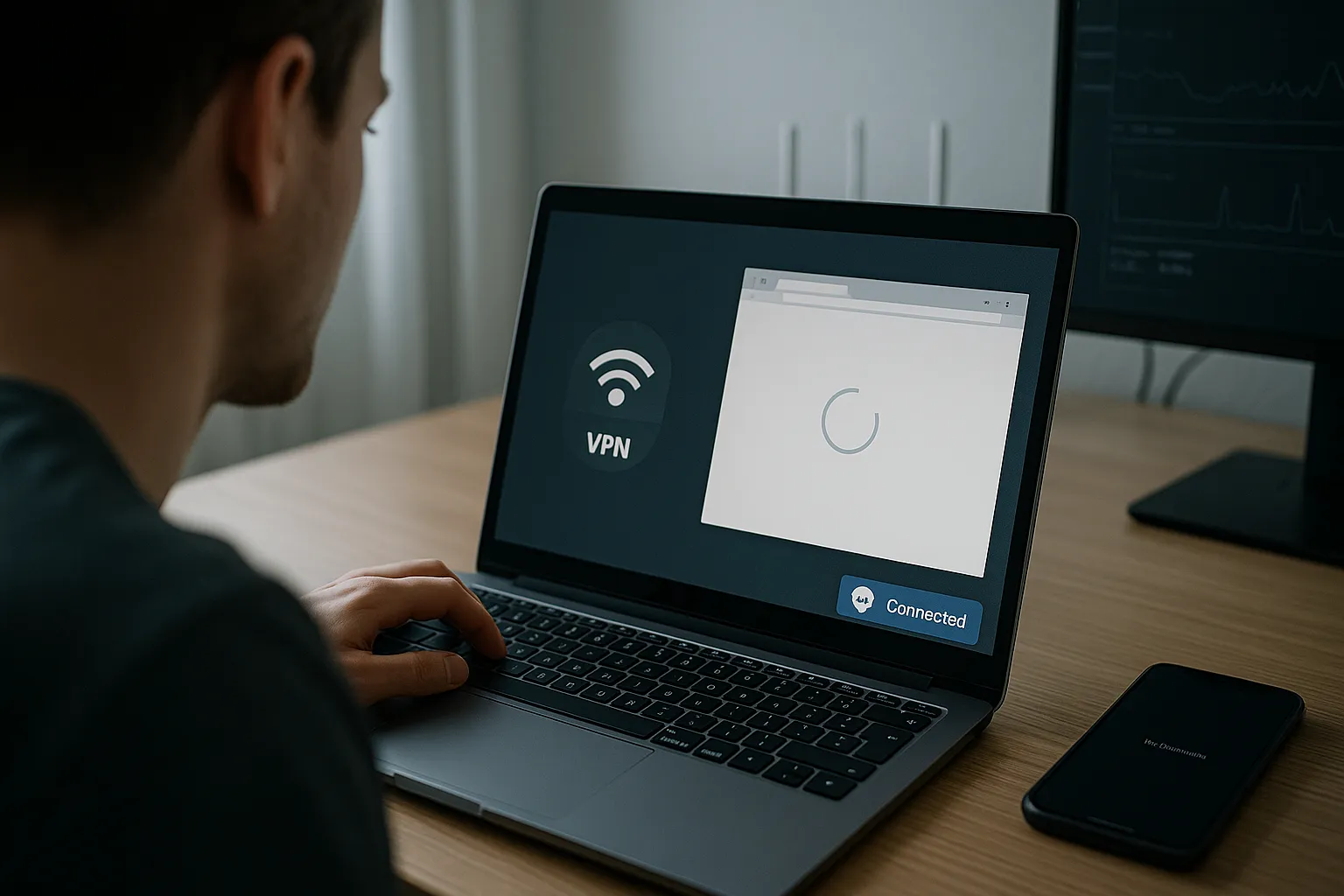
A VPN can sometimes show as connected while websites, apps, and online services still do not load. This usually means the secure tunnel was created, but traffic cannot pass through it correctly. The steps below help you identify whether the problem comes from your internet connection, DNS settings, the selected VPN server, your device, or the network you are using.
Why does a VPN connect without providing internet access?
A successful VPN connection only confirms that your device established a tunnel to the VPN server. Internet access can still fail if the underlying connection is offline, DNS requests cannot be resolved, the selected server is temporarily unavailable, another security application blocks traffic, or the local network restricts VPN connections.
1. Check your internet connection without the VPN
Disconnect VPN Pink and open a few trusted websites. If they do not load without the VPN, reconnect to Wi-Fi or mobile data and resolve the basic internet problem first. A VPN cannot provide connectivity when the underlying connection is unavailable.
2. Disconnect and reconnect VPN Pink
Disconnect the current VPN session, wait several seconds, and reconnect. This creates a new tunnel and may clear a temporary routing problem. If the issue continues, fully close and reopen the VPN Pink app.
3. Select another VPN location
Try a different available VPN server or location. A specific server can be busy, temporarily unreachable, or poorly routed by your internet provider. If another location works, your account and application are probably configured correctly.
4. Test whether DNS is causing the problem
If an IP address is reachable but websites cannot be opened by name, DNS resolution may be failing. Restart the device and reconnect the VPN before changing DNS settings. Avoid installing unknown DNS profiles or configuration applications. If you manually configured DNS previously, temporarily return it to the automatic setting and test again.
5. Restart the device and network equipment
Restart your phone, tablet, or computer. When the problem only occurs on your home Wi-Fi, restart the router as well. This can remove stale routes, cached DNS data, and temporary network conflicts.
6. Check firewalls, antivirus tools, and other VPN apps
Another VPN profile, firewall, antivirus product, ad blocker, or network-filtering application may interfere with the tunnel. Do not run multiple VPN applications at the same time. Temporarily disable only the network-filtering feature you trust, test the connection, and enable it again afterward.
7. Compare Wi-Fi and mobile data
Test VPN Pink once on Wi-Fi and once on mobile data. If it works on one connection but not the other, the affected network, router, DNS service, or internet provider is the likely cause. Public Wi-Fi networks may also require you to complete their sign-in page before connecting a VPN.
8. Confirm that your account is active
Make sure you are using the correct VPN Pink email address and password and that your account has been activated. If login succeeds but every location fails, contact support and provide your device type, operating-system version, connection type, and the approximate time of the failed attempt.
9. Update VPN Pink and your operating system
Install the latest available version of VPN Pink and any stable system updates for your device. Updates can correct compatibility, networking, certificate, and VPN-profile issues.
10. Remove and recreate the VPN profile only when necessary
If the application reports that it is connected but no traffic passes after all previous checks, remove the existing VPN configuration through the VPN Pink app or your device settings and let the app create it again. Only approve profiles created by the official VPN Pink application.
Information to send to VPN Pink support
For faster diagnosis, send the device model, operating-system version, VPN Pink app version, selected server location, whether Wi-Fi or mobile data was used, and the time the problem occurred. Never send your password, private keys, full payment details, or one-time verification codes.
Frequently asked questions
Why does the VPN icon appear when the internet does not work?
The icon indicates that a VPN tunnel exists. It does not guarantee that DNS and internet traffic are passing through the tunnel successfully.
Should I replace the VPN server hostname with an IP address?
Not as a permanent solution. Server hostnames allow infrastructure and IP addresses to change safely. An IP address can be useful for diagnosis, but the normal VPN Pink configuration should be used for regular connections.
Can my Wi-Fi network block a VPN?
Yes. A router, public hotspot, firewall, or internet provider can restrict VPN traffic. Comparing the same device on Wi-Fi and mobile data is one of the quickest ways to identify a network-specific problem.
Summary
When VPN Pink is connected but there is no internet access, first test the underlying connection, reconnect the VPN, switch location, restart the device, and compare Wi-Fi with mobile data. These checks resolve most temporary routing and DNS problems and provide useful information if support is required.