
How to Install VPN Pink on Any Supported Device
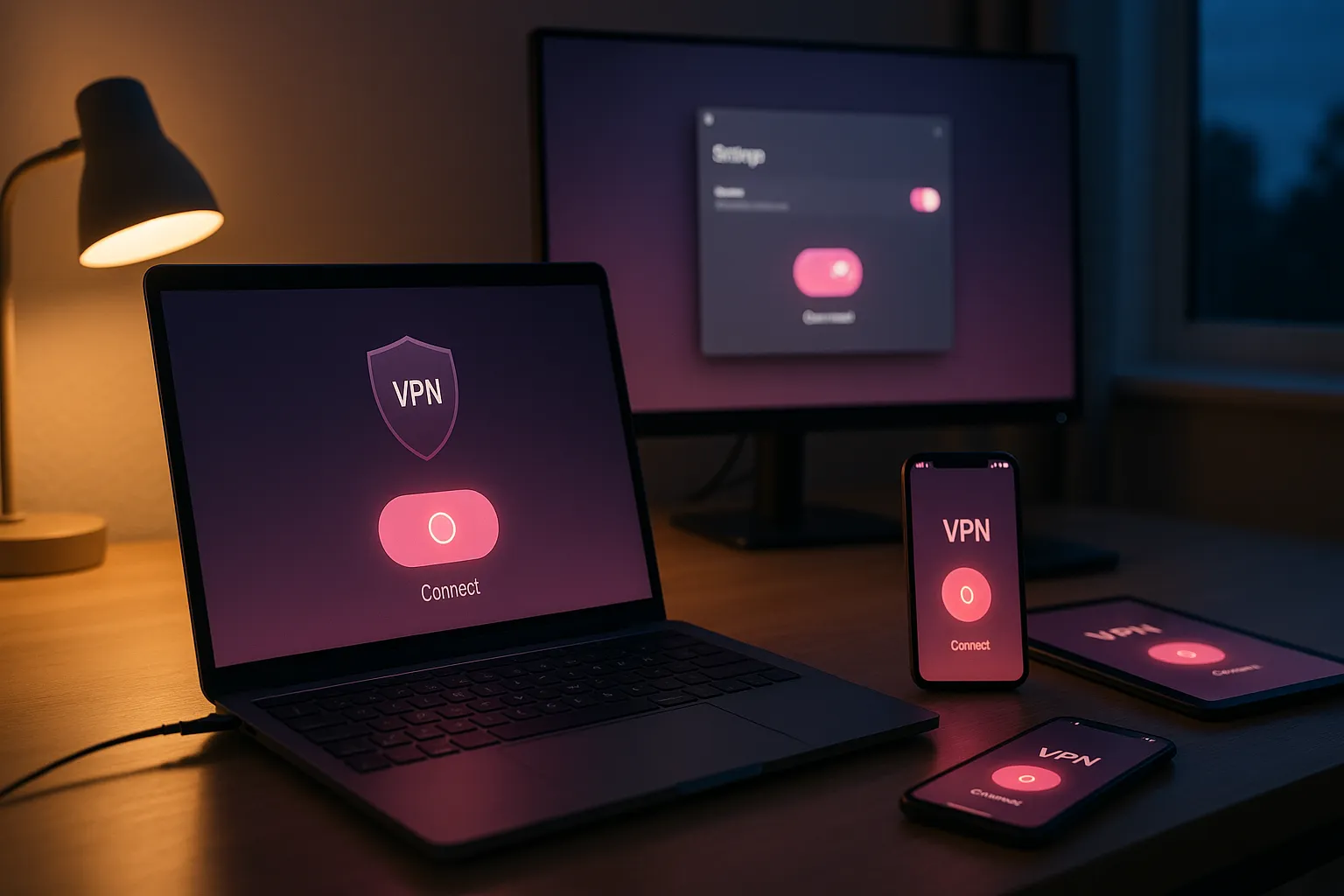
Installing VPN Pink starts with choosing the instructions for your device. The exact screens and connection steps differ between iPhone, iPad, Android, macOS, Windows, and Linux, so following the correct platform guide is important.
This guide helps you choose the right setup path, prepare your account, complete the connection, and identify the information support needs if something does not work.
Before installing VPN Pink
Make sure your device has a working internet connection and uses a supported operating system. Register your VPN Pink account, verify your email address, and complete the required payment or account activation steps before attempting the first VPN connection.
- Use an email address you can access.
- Check the spam folder if the verification message does not arrive.
- Keep your operating system updated.
- Do not send passwords, VPN credentials, payment card details, private keys, or recovery codes to support.
Choose your device
Select the setup guide that matches the device on which you want to use VPN Pink. Do not follow instructions for another operating system, because menus, permissions, and VPN configuration methods can differ.
iPhone and iPad
Use the VPN Pink guide for iOS and iPadOS. Follow the prompts shown by Apple when the device asks for permission to add or activate a VPN configuration.
Android phones and tablets
Use the VPN Pink guide for Android. Android versions and device manufacturers may display VPN settings differently, so use the instructions that match your device.
Mac
Use the VPN Pink guide for macOS. macOS may request administrator approval or permission to add the VPN configuration.
Windows
Use the VPN Pink guide for Windows. Confirm that the system date and time are correct and that Windows has installed current security updates.
Linux
Use the VPN Pink guide for Linux. The exact setup can vary by distribution and desktop environment, so note your distribution name and version before starting.
Connect for the first time
Open the relevant VPN Pink application or system VPN configuration, sign in or enter the connection information provided through your account, select an available VPN location, and start the connection. Approve the operating-system VPN prompt when it appears.
Wait until the application or system settings show that the VPN is connected before opening another application. If the first location does not connect, disconnect cleanly and try another available VPN location.
Verify that the VPN works
After connecting, confirm that normal websites still open. You can then check whether your visible public IP address differs from the address shown before the VPN connection. A changed public IP is one indication that traffic is using the VPN connection.
A VPN improves privacy on the network, but it does not replace software updates, strong unique passwords, multi-factor authentication, or careful browsing.
Troubleshoot installation problems
If VPN Pink does not install or connect, first confirm that the internet works without the VPN. Then restart the application, disconnect and reconnect, and try another VPN location.
- Check whether the account and email address are verified.
- Confirm that the subscription or account access is active.
- Restart the device after installation.
- Temporarily test whether Wi-Fi and mobile data behave differently.
- Record the exact error message instead of describing it only as not working.
- Check whether another VPN, firewall, security application, or restricted network may interfere with the connection.
If you contact support, provide the device type, operating-system version, exact error, selected VPN location, and whether the problem occurs on Wi-Fi, mobile data, or both. Never include your password or private connection credentials.
Frequently asked questions
Which installation guide should I use?
Use the guide for the operating system running on the device you want to protect. If you are unsure, tell support the device manufacturer, model, and operating-system version.
Can I use one platform guide on a different device?
No. The overall goal is the same, but installation screens and VPN permissions differ between platforms. Use the matching device guide.
Why does the device ask for VPN permission?
The operating system must authorize an application or configuration before it can create a VPN connection. Review the prompt and approve it only when you intentionally started the VPN Pink setup.
What should I send to support?
Send your device type, operating-system version, exact error message, VPN location, and network type. Do not send passwords, payment information, private keys, or recovery codes.
Choose the correct setup path
The fastest way to install VPN Pink is to begin with the guide for your exact device. Prepare and verify your account, follow the platform-specific instructions, test the first connection, and provide precise technical details if you need help.