
VPN Works on Wi-Fi but Not on Mobile Data
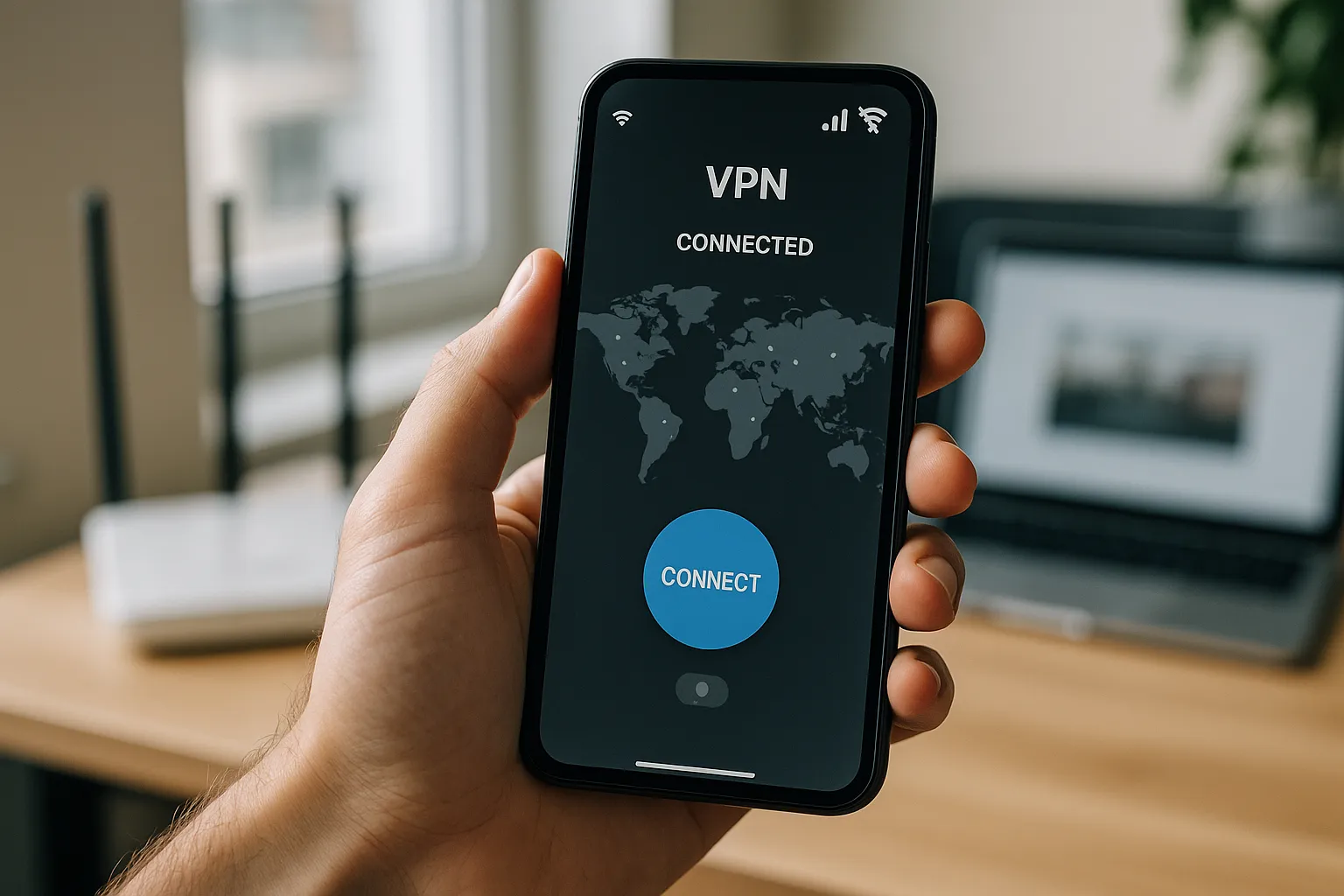
When VPN Pink works on Wi-Fi but fails on mobile data, the application and account are usually functional. The likely causes are cellular coverage, mobile-data permissions, provider restrictions, APN settings, or switching between network types.
1. Confirm mobile internet works without the VPN
Disconnect VPN Pink, disable Wi-Fi, and open several websites using mobile data. Resolve the cellular connection first if nothing loads.
2. Check mobile-data permission
Make sure VPN Pink is allowed to use cellular data. Also verify that system-wide mobile data is enabled and that a data limit has not been reached.
3. Toggle Airplane Mode
Enable Airplane Mode for several seconds, disable it, wait for cellular service, and reconnect. This registers the device with the mobile network again.
4. Try another location
Select another VPN Pink server. Mobile providers can route individual destinations differently from fixed broadband networks.
5. Review data-saving settings
Low Data Mode, Data Saver, roaming restrictions, or carrier controls may affect background and VPN traffic. Temporarily disable the relevant restriction for a controlled test.
6. Avoid unnecessary APN changes
Use the APN supplied by the carrier. Incorrect APN values can break IPv4, IPv6, DNS, and tethering. Reset APN settings only through official device or carrier instructions.
7. Restart and update
Restart the phone and install stable system and VPN Pink updates.
8. Compare network technologies
If possible, compare 5G and LTE. A temporary routing issue may affect only one access technology or location.
9. Contact support with useful details
Provide the country, carrier, device, system version, app version, approximate time, and whether Wi-Fi works. Never provide passwords or verification codes.
Summary
Confirm cellular access, app permission, stable coverage, and another server location before changing advanced settings. If Wi-Fi consistently works, the mobile path is the main diagnostic clue.