
VPN Not Connecting? 10 Common Causes and Easy Fixes
A VPN that will not connect can be frustrating, especially when your internet connection appears to work normally. Fortunately, most VPN connection problems are caused by a small number of common issues that can often be resolved quickly.
This guide explains how to troubleshoot login problems, inactive accounts, Wi-Fi restrictions, DNS issues, blocked IKEv2/IPSec traffic, outdated VPN profiles and temporary server failures.
- 1. Check your internet connection
- 2. Check your login details
- 3. Confirm that your VPN account is active
- 4. Try another VPN location
- 5. Compare Wi-Fi and mobile data
- 6. Check for IKEv2 or IPSec blocking
- 7. Remove an old or damaged VPN profile
- 8. Update and restart the VPN application
- 9. Check your device settings
- 10. Collect information for VPN support
1. Check your internet connection
Before troubleshooting the VPN, disconnect it and confirm that your normal internet connection works. Open several websites or applications without the VPN.
If websites do not load without the VPN, the underlying internet connection is probably causing the problem. Try the following steps:
- Turn Wi-Fi off and on again
- Restart your router
- Open another website or application
- Switch from Wi-Fi to mobile data
- Connect to another Wi-Fi network
- Restart your device
If your internet connection works without the VPN but stops when you attempt to connect, continue with the next troubleshooting steps.
2. Check your login details
A successful website registration does not always mean that the VPN application is using the correct credentials or login method.
Verify your email address and password
Make sure that you entered the correct email address and password. Check for accidental spaces and remember that passwords are case-sensitive.
If you recently changed your password, sign out of the VPN application completely and sign in again using the new password.
Use the correct login method
If you created a regular account with an email address and password, use the standard login option. If you registered through Apple or Google, use the corresponding sign-in method where it is available.
Never send your password, Apple token, Google token or VPN credentials to customer support.
3. Confirm that your VPN account is active
You may be able to sign in even though your VPN access is not currently active. This can happen when a payment is pending, a payment notification has not yet been processed or a subscription has expired.
Check your account or dashboard for the current account and payment status. If you have just completed a payment, allow a short time for processing. Then sign out of the VPN application and sign in again.
What to provide when reporting a payment problem
If your payment was successful but VPN access remains inactive, you can safely provide support with:
- The email address associated with your VPN Pink account
- The approximate time of payment
- The payment method used
- A Stripe receipt or transaction reference
Never provide complete card information, cryptocurrency private keys, wallet recovery phrases or authentication codes.
4. Try another VPN location
A particular VPN server may occasionally be unavailable or temporarily overloaded. Disconnect from the current location and select another available VPN location.
If another location works, the problem is probably limited to the original server. You can continue using the working location and report the affected server to support.
If every location fails, the cause is more likely related to your account, application, device or local network.
5. Compare Wi-Fi and mobile data
Testing another network is one of the quickest ways to identify why a VPN is not connecting.
Turn off Wi-Fi and test the VPN using mobile data. If VPN Pink works on mobile data but not on Wi-Fi, the Wi-Fi network, router, firewall or internet provider may be restricting VPN traffic.
Networks that may restrict VPN connections
- Public Wi-Fi networks
- Hotels and airports
- School or university networks
- Workplace networks
- Guest Wi-Fi networks
- Routers with strict firewall settings
Restart the router and test again if you control the network. On a managed workplace or school network, you may need to contact the network administrator.
6. Check for IKEv2 or IPSec blocking
Some VPN connections use IKEv2/IPSec. This protocol commonly requires UDP ports 500 and 4500. Certain routers, firewalls and public networks block this traffic.
Possible signs of network blocking
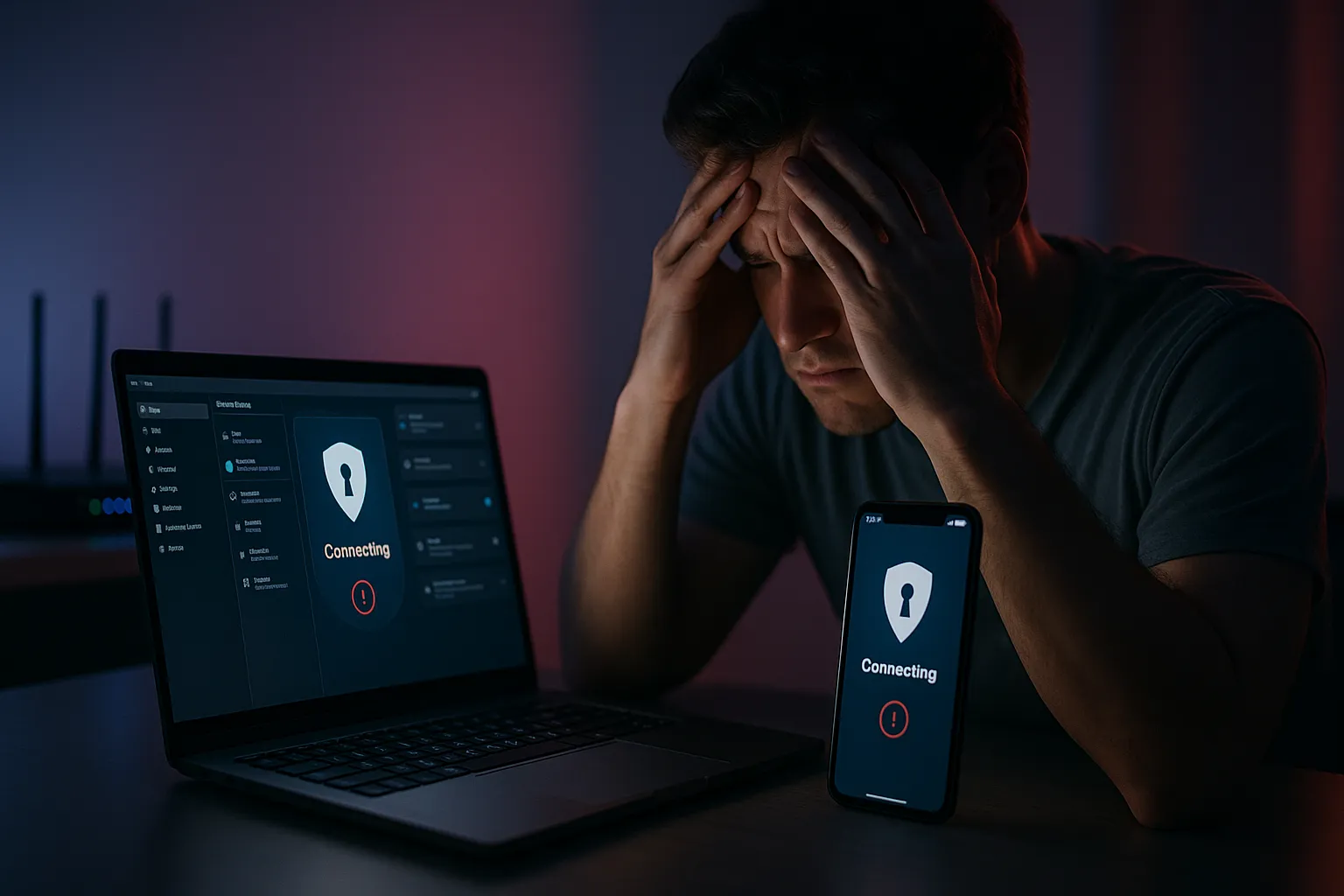
- The VPN remains stuck on “Connecting”
- The connection ends immediately
- The same account works on another network
- The VPN works on mobile data but not on Wi-Fi
- The application reports that the VPN server is not responding
If your router provides an option called “IPSec passthrough,” confirm that it is enabled. Do not change advanced router settings unless you understand them or have permission from the network owner.
Changing DNS settings alone may not solve a blocked VPN connection because DNS and VPN tunnel traffic are different parts of the connection. Testing another network is usually a more reliable diagnostic step.
7. Remove an old or damaged VPN profile
On iPhone, iPad and macOS, the operating system stores VPN configurations. An outdated or damaged profile can prevent the application from establishing a new connection.
Open your device’s VPN settings and look for an old VPN Pink configuration. Remove only the VPN profile that you recognize, then reopen VPN Pink and allow the application to create a new configuration.
Do not remove unrelated workplace or personal VPN profiles. After creating the new profile, restart the device and try connecting again.
8. Update and restart the VPN application
An outdated application can contain connection bugs or may no longer be compatible with current server settings.
Try these steps in order:
- Close VPN Pink completely
- Open the application again
- Check for available application updates
- Restart your device
- Sign out and sign in again
- Reinstall the application if the problem continues
Before reinstalling, make sure that you remember which login method you originally used. Do not store your password in an unsecured document or send it to another person.
9. Check your device settings
Verify the date and time
Incorrect date and time settings can cause certificate validation and secure connection failures. Configure your device to set the date and time automatically, restart the VPN application and try again.
Look for application conflicts
Other VPN software, DNS filters, firewalls, parental-control applications and security tools can interfere with a VPN connection.
Make sure that another VPN is not already active. You can temporarily disable another VPN application to test for a conflict, but remember to re-enable any security software after testing.
Check available system permissions
The VPN application needs permission to create and manage a VPN configuration. If you previously denied this request, open your device settings and allow the required VPN configuration.
10. Collect information for VPN support
If the VPN still does not connect, support will need enough information to determine whether the problem is related to your account, device, network or VPN server.
Safe diagnostic information to provide
- Your device type
- Your operating-system version
- Your VPN Pink application version
- The exact error message
- Whether you can sign in successfully
- Whether your account appears active
- Whether the problem occurs on Wi-Fi, mobile data or both
- Whether another VPN location works
- The approximate time when the connection failed
A screenshot of the error may also help. Before sending it, hide email addresses, QR codes, tokens and other sensitive information.
Information you should never send
- Your account password
- Your VPN credentials
- Apple or Google authentication tokens
- Complete card details
- Cryptocurrency private keys
- Wallet recovery or seed phrases
- One-time authentication codes
VPN support should not require any of this confidential information to investigate a connection problem.
Final VPN connection checklist
If your VPN is not connecting, begin with the simplest checks. Confirm that the internet works without the VPN, verify your login method, check your account status and try another VPN location.
Next, compare Wi-Fi with mobile data. If the VPN works on one network but not another, the local router or firewall is probably involved. Recreate an outdated VPN profile, update the application and verify the device’s date and time.
If the problem continues, contact VPN Pink support with the exact error message, device details, network type and approximate time of failure. Clear diagnostic information helps the support team investigate the account and server logs without requesting confidential credentials.