
VPN Login Works on Android but Not on iPhone
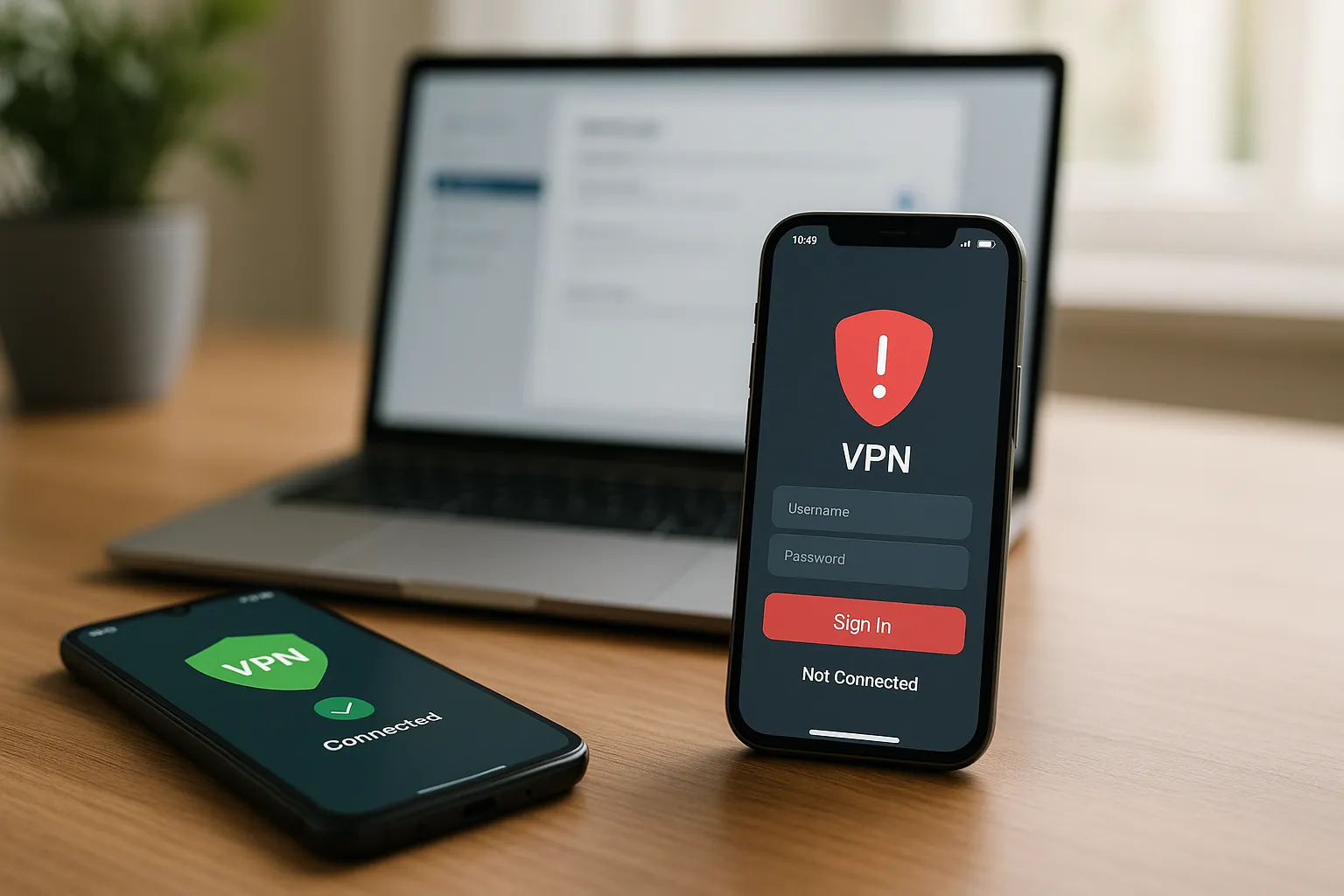
If the same normal VPN Pink account works on Android but not on iPhone, the account itself is probably valid. Focus on the iOS app session, saved credentials, VPN profile, network permissions, and system version. This is separate from Sign in with Apple.
1. Confirm normal email login
Choose the ordinary email-and-password login flow. Do not select Apple login unless the account was created or linked using that method.
2. Sign out and clear the old session
Sign out of VPN Pink, close the app, reopen it, and type the email address and password again. An old application token should not replace a normal login after logout.
3. Verify the exact email address
Check for typing differences, hidden spaces, and Apple private-relay addresses. Use the same account identity that works on Android.
4. Recreate the iOS VPN profile
Remove the VPN Pink configuration and allow the official application to create it again. An outdated profile can fail even when application login succeeds.
5. Check Keychain and saved-password behavior
Replace an outdated saved password and confirm the current value manually. Do not share the password with support.
6. Update iOS and VPN Pink
Use current stable versions to avoid authentication and networking compatibility issues.
7. Test the same network
Connect Android and iPhone to the same Wi-Fi for comparison. This separates a device issue from different mobile-provider routing.
8. Report the stage that fails
Tell support whether the failure occurs during website login, app login, profile creation, or VPN connection. Include the time, device, system version, and error text.
Summary
When Android works, verify that iOS uses the normal account flow, fresh credentials, and a fresh VPN profile before investigating the server.