
VPN Setup Guide for Smart TVs: Step-by-Step for Beginners
Streaming on a big screen is great, but your smart TV can quietly expose a lot of data about what you watch, which apps you use, and even your location. A clear VPN setup guide for smart TVs helps you protect your privacy and access more content without needing to be a tech expert.
This guide walks you through the main ways to use a VPN with your smart TV, explains the pros and cons of each method, and shares practical tips to avoid common mistakes. Whether you own a Samsung, LG, Android TV, Fire TV, or another brand, you will find a setup option that works for you.
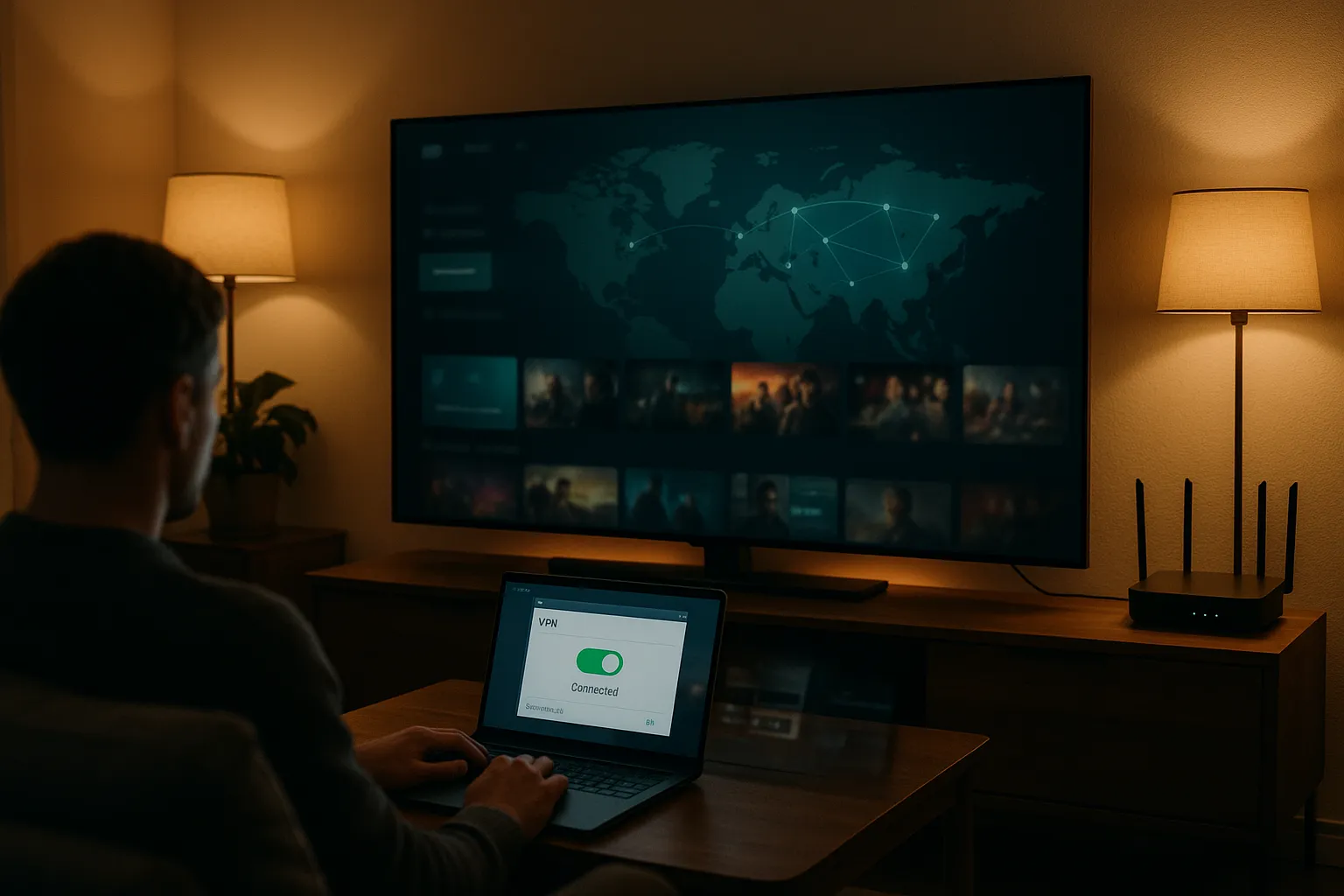
What a VPN Does on a Smart TV
How a VPN Works with Streaming Devices
A Virtual Private Network (VPN) creates an encrypted tunnel between your device and a VPN server on the internet. When you use a VPN on a smart TV, your internet traffic is routed through that server before reaching streaming platforms and other apps.
This means the websites and apps you use mainly see the VPN server's IP address and location, not your home IP address. Your internet provider can still see that you are connected to a VPN, but it cannot easily read which shows you watch or which services you use inside that encrypted tunnel.
Why People Use a VPN on Smart TVs
- More privacy from your ISP: Your internet provider has less visibility into your streaming habits.
- Reduced tracking: Some smart TV brands and apps collect detailed viewing data. A VPN can help limit what they can link directly to your real IP address.
- Access to region-specific content: By choosing a VPN server in another country, you may see different libraries on some streaming platforms, depending on their terms and your local laws.
- Extra security on shared networks: If your TV is connected to a shared Wi-Fi (for example, in an apartment building), encryption makes it harder for others on the same network to snoop on your traffic.
However, a VPN does not make you completely anonymous, and it does not replace good security habits, such as using strong passwords and keeping apps updated.
Main VPN Setup Options for Smart TVs
Option 1: Native VPN App on the TV
Some smart TVs and streaming devices support installing VPN apps directly, especially those based on Android TV or Fire OS.
- Open the app store on your TV (Google Play Store, Amazon Appstore, etc.).
- Search for your VPN provider's app.
- Install, open it, sign in, and connect to a server location.
This is usually the simplest approach, but it is not available on many Samsung Tizen, LG webOS, or older smart TV models.
Option 2: VPN on Your Router
Installing a VPN on your home router protects every device connected to it, including smart TVs that do not support VPN apps. This is one of the most robust methods, but it requires more configuration and a compatible router.
Option 3: Sharing a VPN Connection from a Computer or Phone
You can connect your TV to a Wi-Fi hotspot created by a laptop, desktop, or smartphone that is already running a VPN. The computer or phone acts as a bridge between your TV and the VPN.
- Turn on the VPN on your computer or phone.
- Enable mobile hotspot or internet sharing.
- Connect your smart TV to that new Wi-Fi network.
This method is flexible but can impact speed and may require reconfiguration each time you share the connection.
Option 4: Smart DNS as a Complement
Some VPN providers offer Smart DNS, which is not a VPN but a DNS-based tool that can help with accessing region-specific streaming content. It does not encrypt traffic, so it offers little privacy protection, but it is easy to set up on many TVs.
How to Set Up a VPN on Your Router
Check Router and VPN Compatibility
Before you start, confirm two things:
- Router support: Look for built-in VPN client support (OpenVPN, WireGuard, or similar). Many ISP-supplied routers do not support this.
- VPN router profiles: Check that your VPN provider offers configuration files or setup guides for routers.
If your current router does not support VPN clients, you might need a compatible model or third-party firmware such as DD-WRT, AsusWRT, or OpenWrt. Flashing firmware can be risky; follow your router vendor's instructions carefully.
Basic Router VPN Configuration Steps
The exact interface varies by router brand, but the general process is similar:
- Log in to your router's admin panel (often at 192.168.0.1 or 192.168.1.1).
- Find the VPN or WAN section and choose "VPN Client" or similar.
- Upload or paste the VPN configuration file from your provider.
- Enter your VPN username and password if required.
- Save the settings and connect the VPN client.
- Reconnect your smart TV to the router's Wi-Fi.
Once connected, all devices on that network, including your TV, will route traffic through the VPN.
Performance and Privacy Considerations
- Speed: Routing every device through the VPN can slow down your connection, especially if the VPN server is far away or your router is low-powered.
- Selective routing: Some advanced routers support split tunneling, allowing you to send only specific devices (like your smart TV) through the VPN, keeping others on the regular connection.
- Logging: Choose a reputable VPN provider with a clear privacy policy and transparent logging practices. A VPN shifts trust from your ISP to the VPN company, so the provider matters.
Using Native Apps, Casting, and Smart DNS
Installing a VPN App on Android TV or Fire TV
If your smart TV uses Android TV, Google TV, or Fire TV, installing a VPN app is often straightforward:
- Open the app store on your TV.
- Search for your VPN provider and install the app.
- Sign in with your VPN account.
- Choose a server location and connect.
- Open your streaming apps as usual.
This method offers good control: you can quickly change locations or disconnect directly from the TV, and it usually has less impact on other devices.
Screen Mirroring or Casting from a VPN-Protected Device
If your TV does not support VPN apps, you can:
- Enable a VPN on your smartphone, tablet, or laptop.
- Use Chromecast, AirPlay, Miracast, or built-in casting features to mirror content to the TV.
In this case, the VPN protects the device doing the streaming. The TV mainly receives the video signal, so the privacy benefits are focused on the source device rather than the TV itself.
Configuring Smart DNS on Your TV
To use Smart DNS from a VPN provider on your smart TV:
- Log in to your VPN account dashboard in a browser.
- Activate Smart DNS and note the DNS server addresses given.
- On your TV, go to network settings and choose manual DNS setup.
- Enter the Smart DNS addresses and save.
This can help with regional streaming libraries and usually has minimal speed impact, but it does not encrypt your traffic or hide your IP address from your ISP.
Pros and Cons of Smart TV VPN Methods
Router VPN vs. TV App
- Router VPN - Pros:
- Covers every device on your network, including TVs, consoles, and IoT devices.
- Works even if the TV has no VPN app support.
- Only needs to be set up once.
- Router VPN - Cons:
- More complex setup and troubleshooting.
- Can slow down your entire network if the router or server is overloaded.
- Less granular control; changing location affects all devices unless you use advanced routing.
- TV App - Pros:
- Simple to install and manage on supported platforms.
- Location changes only affect the TV, not your whole home network.
- Often better performance than connection sharing.
- TV App - Cons:
- Not available on many Samsung, LG, and older smart TVs.
- Interface can be slower or harder to navigate with a remote.
Connection Sharing and Smart DNS Trade-Offs
- Connection sharing - Pros:
- No router changes needed.
- Good for temporary use or travel.
- Connection sharing - Cons:
- More steps each time you share the connection.
- Can reduce speed because the laptop or phone does extra work.
- Smart DNS - Pros:
- Very fast, since there is no encryption overhead.
- Easy to configure directly on many TVs.
- Smart DNS - Cons:
- No encryption, so little privacy or security benefit.
- Effectiveness depends on the streaming service and your provider's implementation.
Best Practices, Tips, and Quick FAQs
Best Practices for a Reliable VPN Setup on Smart TVs
- Choose nearby servers for streaming: Closer locations usually mean better speeds and fewer buffering issues.
- Use wired connections where possible: If your TV supports Ethernet, a cable can provide more stable performance than Wi-Fi.
- Keep firmware and apps updated: Update your router, smart TV OS, and VPN app to benefit from security fixes and performance improvements.
- Test multiple servers: If one server is slow or blocked by a service, try another in the same region.
- Respect local laws and service terms: Always follow the rules in your country and the terms of the services you use.
Common Mistakes to Avoid
- Assuming a VPN makes you completely anonymous online.
- Using free VPNs with unclear logging policies or weak security.
- Forgetting that some apps may use their own DNS or connection methods, which can affect how they work with VPNs.
- Installing unverified firmware on routers without reading the risks.
Quick FAQs About VPN Setup on Smart TVs
Do all smart TVs support VPN apps?
No. Many Android TV and Fire TV devices do, but popular platforms like Samsung Tizen and LG webOS usually do not. In those cases, router VPNs, connection sharing, or Smart DNS are common alternatives.
Will a VPN always slow down my streaming?
Some speed loss is normal because of encryption and routing. However, with a quality VPN, a nearby server, and a decent internet connection, you can often stream HD or 4K content smoothly.
Is a VPN enough to secure my smart TV?
A VPN improves privacy and adds an extra layer of protection, especially on untrusted networks, but it does not fix weak passwords, outdated apps, or insecure accounts. Combine VPN use with good security practices for the best results.
Following this VPN setup guide for smart TVs, you can choose the method that fits your devices and comfort level, improve your streaming privacy, and enjoy more control over how your viewing data travels across the internet.