
Installing a VPN on Your Home Router: A Clear Step-by-Step Guide
Installing a VPN on your home router is one of the most effective ways to protect every device on your network with a single setup. Instead of configuring a VPN app on each phone, laptop, or smart TV, your router handles the secure connection for all of them.
This guide explains how installing a VPN on your home router works, what you need to check before you start, and the main benefits and limitations. You will also find practical examples, best practices, and a quick FAQ to help you avoid common mistakes.
What installing a VPN on your home router actually does
How a router VPN changes your home network
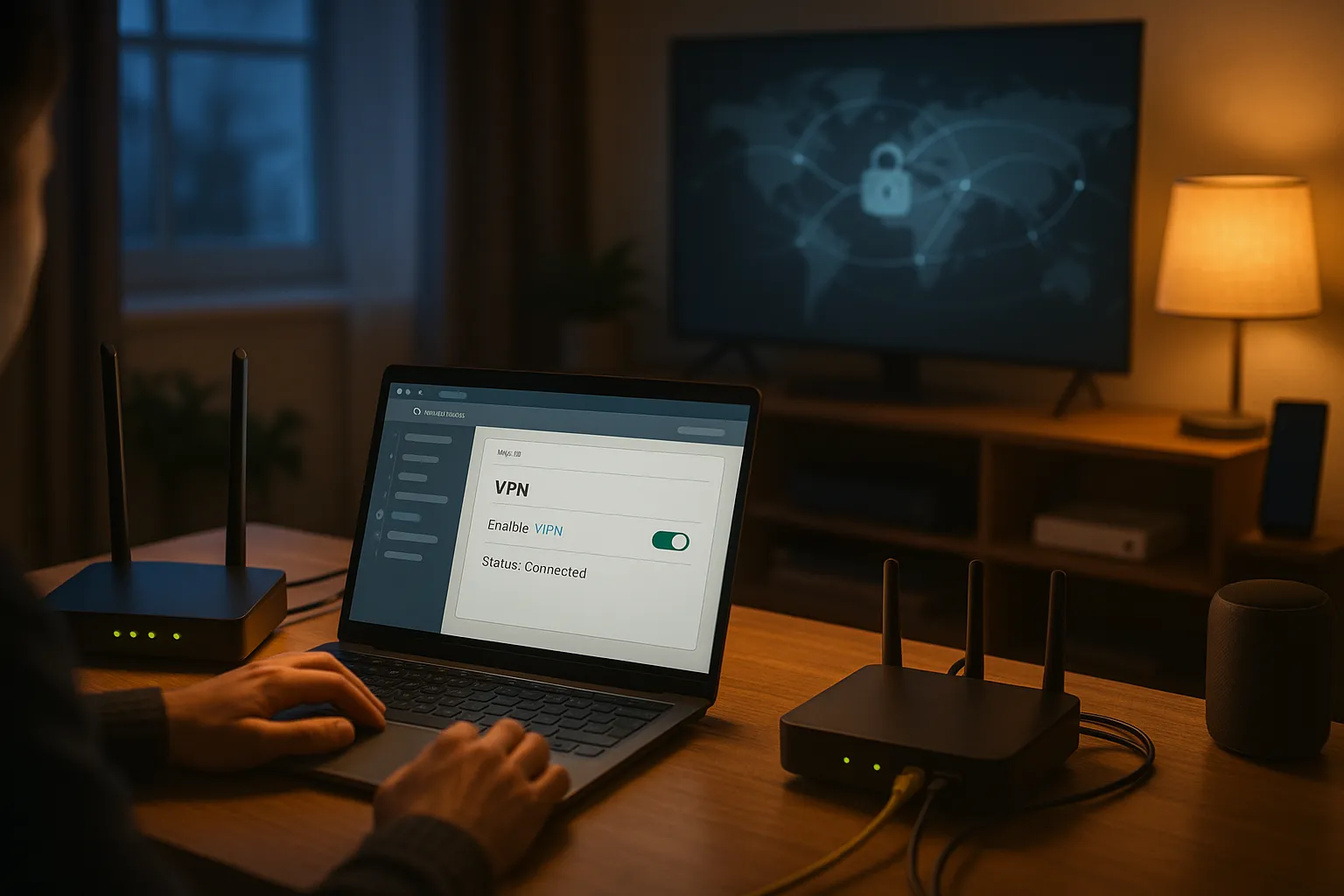
When you install a VPN on your home router, the router becomes the single point that connects your entire home network to the VPN server. Every device that uses your Wi-Fi or wired connection is automatically routed through the VPN tunnel, even if it has no VPN app installed.
Instead of each device creating its own encrypted connection, the router creates one encrypted tunnel between your home and the VPN server. Your internet provider can still see that you are connected to a VPN, but the websites you visit and most of the data you send are encrypted and harder to inspect.
Privacy, security, and what a router VPN does not do
Installing a VPN on your home router improves privacy by:
- Hiding your real IP address from most websites and online services
- Encrypting traffic between your home and the VPN server
- Making it more difficult for your ISP to track which sites you visit
However, it does not provide complete anonymity or replace safe browsing habits. A VPN on your router cannot:
- Stop you from sharing personal information on websites or social media
- Prevent tracking through cookies, browser fingerprinting, or logged-in accounts
- Protect devices from malware if you download infected files or click malicious links
Think of a router VPN as a strong privacy layer for your connection, not a magic shield that fixes all security issues.
How to check compatibility and prepare your router
Confirm your router supports VPN connections
Before installing a VPN on your home router, you must check if the router firmware supports VPN client mode. Look for terms like OpenVPN client, WireGuard client, or VPN client in:
- The router manual or quick start guide
- The web interface (often under Advanced, WAN, or VPN sections)
- The manufacturer website or support pages
Common options that support VPN client mode include some models from Asus, TP-Link, Netgear, and dedicated firmware like DD-WRT, OpenWrt, or Asuswrt-Merlin. If your current router does not support VPN clients, you may need:
- A new VPN-ready router from your ISP or a retail brand
- To install custom firmware (only if you are comfortable with advanced setup)
- A secondary VPN router connected behind your main ISP router
Choose a VPN service that supports router setups
Not every VPN provider offers easy router configuration. When choosing a service for installing a VPN on your home router, look for:
- Clear router setup guides for your specific router model or firmware
- Support for OpenVPN or WireGuard, which are widely used for routers
- Configuration files (.ovpn or similar) and DNS settings
- Good speed and reliable servers in locations you plan to use
Check whether the provider allows multiple simultaneous connections. A router VPN usually counts as one connection, and you may still want VPN apps on mobile devices for when you leave home.
Step-by-step: installing a VPN on your home router
1. Access your router dashboard
To start installing a VPN on your home router, log in to the router’s web interface:
- Connect your computer to the router via Wi-Fi or Ethernet
- Enter the router IP address in your browser (often 192.168.0.1 or 192.168.1.1)
- Log in with your admin username and password (change the default if you have not already)
If you do not know the login details, check the label on the router or the manual. Avoid using the factory default password long term, as this is a security risk.
2. Import or enter your VPN configuration
Next, go to the VPN or WAN settings section. The exact labels vary by brand, but you will typically find a VPN Client or OpenVPN Client page. From your VPN provider, download:
- The router configuration file for your chosen server location
- Your VPN username and password (sometimes different from your account login)
- Any CA certificates or keys if required
Then either:
- Upload the file directly into the router, or
- Manually copy settings such as server address, port, protocol (UDP/TCP), and encryption options
Save and apply the settings. The router should now attempt to establish a VPN connection.
3. Connect devices and verify the VPN tunnel
Once the VPN client shows as “Connected” or “Active” in your router interface:
- Reconnect your devices to the Wi-Fi network if needed
- Visit an IP check website from any device to confirm your public IP matches the VPN server location
- Test a few websites and streaming services to ensure everything works correctly
If sites load slowly or fail to connect, try another VPN server, adjust DNS settings (for example, use your VPN provider’s DNS or a trusted public DNS), or temporarily disable the VPN to compare performance.
Pros and cons of running a VPN on your router
Main advantages of a router VPN
Installing a VPN on your home router offers several practical benefits:
- Whole-home coverage: Every device connected to your network uses the VPN automatically, including smart TVs, game consoles, and IoT devices that cannot run VPN apps.
- One-time setup: Configure the VPN once on the router instead of installing and updating apps on each device.
- Consistent IP location: All devices appear to come from the same VPN server location, which can help with some streaming and remote access scenarios.
- Better privacy for guests: Visitors who join your Wi-Fi benefit from the encrypted tunnel without any extra steps.
Limitations and drawbacks you should know
There are also important downsides to consider:
- Less flexibility: You cannot easily choose different VPN locations per device unless your router supports advanced policies or multiple SSIDs.
- Possible speed loss: The router’s CPU has to handle encryption, which can reduce your maximum internet speed, especially on older or low-end hardware.
- More complex troubleshooting: If a website or app does not work well with a VPN, you must adjust router-level settings instead of simply turning the VPN off on one device.
- Local services may break: Some banking sites, streaming platforms, or smart home services may block or limit access from VPN IP addresses.
Because of these trade-offs, many users combine a router VPN with device-level VPN apps for more control.
Real-world use cases and performance tips
When installing a VPN on your home router makes the most sense
A router VPN is especially useful if you:
- Have many devices at home and do not want to manage VPN apps on each one
- Use smart TVs, streaming boxes, or consoles that do not natively support VPN apps
- Want a simple way to improve privacy for family members or guests
- Frequently travel but want your home devices to appear in a specific country (for example, for streaming libraries or remote access)
It is also valuable if you work remotely and want an additional privacy layer for your home office, as long as it does not conflict with your employer’s own VPN or security rules.
Improving speed and stability on a router VPN
To keep your connection usable after installing a VPN on your home router, consider:
- Choosing nearby servers: The closer the VPN server, the lower the latency and usually the better the speed.
- Using modern protocols: If supported, protocols like WireGuard or optimized VPN implementations often provide faster performance than older options.
- Upgrading your router hardware: If your speeds drop dramatically, your router’s processor may be the bottleneck.
- Splitting traffic (policy routing): On advanced routers, you can route only certain devices or apps through the VPN and leave others on the regular connection.
Regularly test your speed with and without the VPN to make sure the performance impact is acceptable for your household.
Best practices, common mistakes, and quick FAQs
Security and privacy best practices
To get the most from installing a VPN on your home router while staying safe:
- Change your router admin password and keep the firmware updated
- Use strong Wi-Fi encryption (WPA2 or WPA3) and avoid open networks
- Enable the VPN’s kill switch feature on routers that support it, or use firewall rules to block traffic if the VPN drops
- Combine your VPN with good habits: use strong passwords, enable two-factor authentication, and be cautious with downloads and links
Remember, a VPN is one important layer in your privacy and security setup, but it should work alongside antivirus tools, secure browsers, and sensible online behavior.
Common mistakes to avoid
Beginners often run into the same issues when installing a VPN on a home router:
- Flashing firmware without research: Installing custom firmware like DD-WRT can brick your router if done incorrectly. Only do this if you are confident and follow official guides.
- Using weak or outdated protocols: Avoid insecure options like PPTP; they are fast but no longer considered safe.
- Forgetting about devices that need real local IPs: Some smart home devices or local services may work better outside the VPN. Consider excluding them if your router allows it.
- Ignoring logs and status pages: Your router and VPN provider logs (connection logs, not activity logs) can help you quickly diagnose connection drops or misconfigurations.
Quick FAQs about installing a VPN on your home router
Do I still need a VPN app on my phone?
Often yes, for when you leave home and use mobile data or public Wi-Fi. Your router VPN only covers traffic going through your home network.
Will my ISP know I am using a VPN?
Your ISP can usually see that your router is connected to a VPN server and the amount of data you transfer, but not the specific websites you visit or most of the content you access through the tunnel.
Can a VPN on my router stop hackers?
A VPN can make some attacks harder by encrypting your traffic, but it does not replace firewalls, software updates, or good security practices. You still need to secure your Wi-Fi, keep devices patched, and use reputable security tools.
Is installing a VPN on your home router worth it?
For many households, yes. It simplifies protection for multiple devices and improves privacy with a single setup. Just be aware of the performance impact, compatibility issues, and the fact that it is one part of a broader security strategy.
Installing a VPN on your home router is a powerful way to extend VPN protection to your entire home network with minimal ongoing effort. By checking compatibility, following your provider’s router guides carefully, and combining the VPN with smart security habits, you can enjoy stronger privacy and more control over how your home devices connect to the internet.