
How to Test for DNS and IP Leaks (Step-by-Step Guide)
When you connect to a VPN, you expect your real IP address and browsing activity to stay private. But if your setup is not configured correctly, DNS and IP leaks can quietly expose who you are and what you are doing online.
This guide explains how to test for DNS and IP leaks in a simple, practical way. You will learn what these leaks are, why they matter for privacy, how to run reliable leak tests, and what to do if you find a problem.
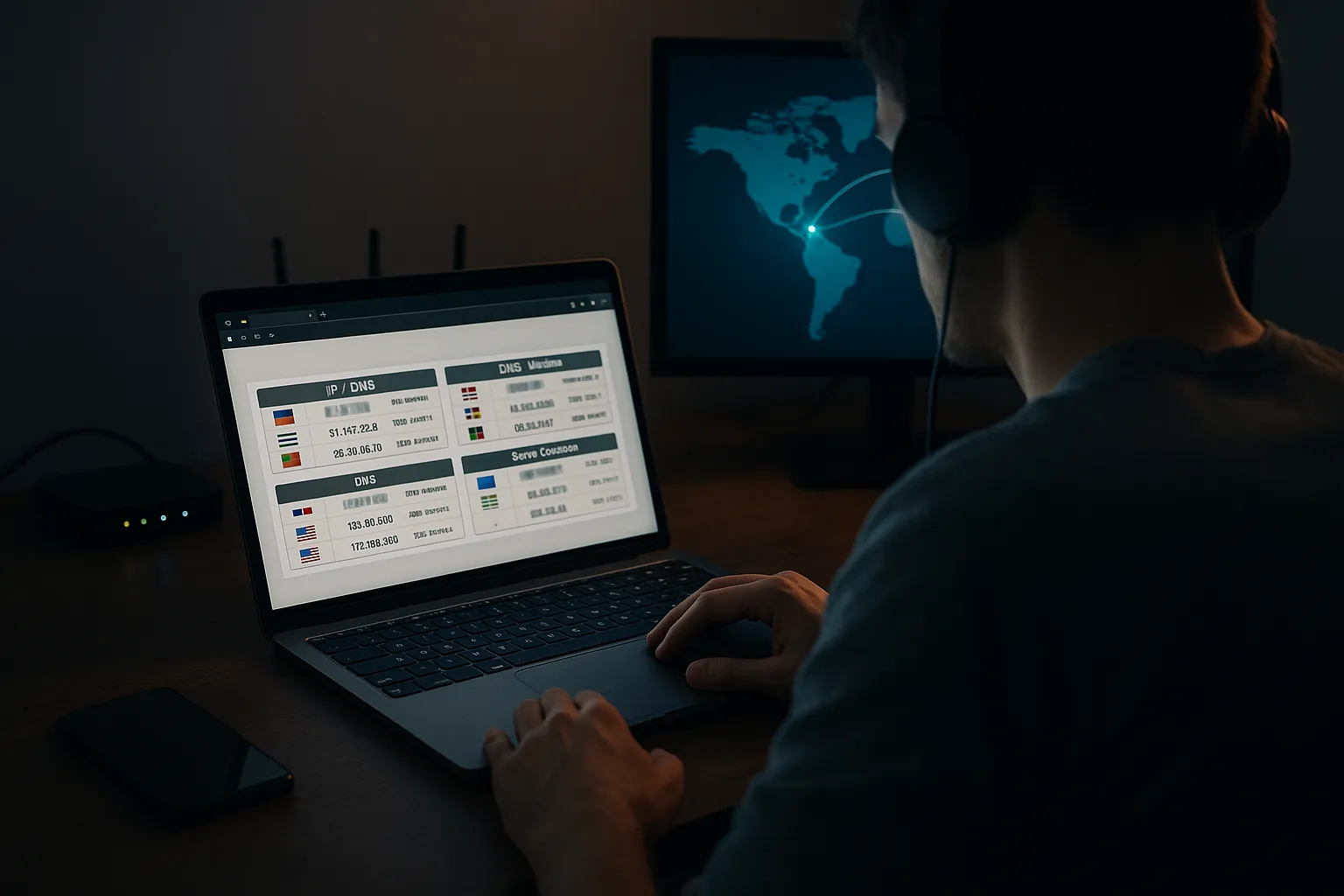
What Are DNS and IP Leaks?
IP address leaks explained
Your IP address is a unique number assigned to your device by your internet service provider (ISP). It reveals your approximate location and which network you are using. When you use a VPN, your traffic should appear to come from the VPN server’s IP, not your real one.
An IP leak happens when websites or apps can still see your real IP address despite the VPN connection. This can occur through:
- Incorrect VPN configuration or dropped connections
- IPv6 traffic that your VPN does not handle
- WebRTC requests in your browser that bypass the VPN tunnel
DNS leaks explained
DNS (Domain Name System) works like the internet’s phone book. When you type a website address, your device asks a DNS server to translate that name into an IP address. Usually, your ISP runs these DNS servers.
With a VPN, your DNS requests should be sent through the encrypted tunnel to DNS servers controlled by the VPN provider or another private resolver. A DNS leak occurs when your device continues to send DNS requests to your ISP instead of through the VPN. This can reveal:
- Which websites you visit (even if the content is encrypted with HTTPS)
- Your ISP and approximate physical location
- That you are likely the person behind the VPN session
Why DNS and IP leaks matter for privacy
Even if your VPN encryption is strong, leaks can undermine your privacy. Potential consequences include:
- Tracking by websites and advertisers: They can link your activity to your real IP.
- ISP visibility: Your ISP may still see which domains you resolve, even if not the exact pages.
- Location exposure: Streaming services, games, or work tools may detect your real region and block access.
- Weaker security posture: Attackers or snoops on public Wi-Fi can gather more information about you.
How to Test for DNS and IP Leaks Step by Step
Step 1: Check your real IP and DNS without a VPN
Before you connect to a VPN, you need a baseline.
- Disconnect from your VPN completely.
- Visit an IP-checking site such as ipleak.net, ipinfo.io, or similar.
- Note down:
- Your public IP address
- Reported country, city, and ISP
- On the same or another site, run a DNS leak test and note which DNS servers and countries appear.
These details represent your normal, non-VPN identity on the internet.
Step 2: Connect to your VPN and repeat the tests
Now connect to your VPN and choose a server in a different country or city from your real location. Then:
- Refresh the IP-checking site or open it in a new private/incognito window.
- Confirm that:
- The IP address has changed.
- The location now matches the VPN server region, not your own.
- Run a DNS leak test again (standard or extended test).
You should see only DNS servers associated with your VPN or a privacy-focused DNS provider, ideally in or near the VPN server’s region.
Step 3: Test for WebRTC and IPv6 leaks in your browser
Some browsers can reveal your real IP via WebRTC, a technology used for real-time communication. To test this:
- With your VPN still connected, visit a WebRTC leak test site (search for "WebRTC leak test").
- If the site shows your real local or public IP address alongside the VPN IP, you may have a WebRTC leak.
For IPv6 leaks:
- Visit an IPv6 test site (search for "IPv6 test").
- If your ISP supports IPv6 and your VPN does not, your IPv6 address might bypass the tunnel.
Step 4: Test on different devices and networks
Repeat the same steps on:
- Your phone (Wi-Fi and mobile data)
- Your laptop or desktop
- Public Wi-Fi networks, such as cafes or hotels
Leaks can behave differently depending on the operating system, browser, and network settings, so it is worth checking multiple scenarios.
Understanding Your Test Results
What a clean leak test looks like
If your VPN is working correctly and there are no DNS or IP leaks, you should see:
- A public IP address that belongs to your VPN provider, not your ISP
- A location matching the VPN server region
- DNS servers associated with the VPN provider or a neutral resolver, not your ISP
- No sign of your original IP address in WebRTC or IPv6 tests
Common signs of DNS and IP leaks
You may have a leak if:
- Your real IP address or ISP name appears anywhere in the results
- DNS servers show your home country or ISP while your VPN server is in another region
- WebRTC tests reveal your local or public IP instead of only the VPN IP
- IPv6 tests show an address from your ISP while IPv4 appears to be from the VPN
Privacy and security implications of leaks
Even small leaks can weaken your privacy posture. For example:
- A DNS leak might let your ISP build a profile of the sites you visit.
- An IP leak can allow streaming platforms or websites to enforce geo-blocks or account restrictions.
- On public Wi-Fi, a leak exposes more metadata about your activity to anyone monitoring the network.
A VPN is still useful even if you find minor leaks, but you should fix them to get the level of privacy you expect.
Fixing Common DNS and IP Leak Issues
Enable built-in VPN leak protection features
Many reputable VPNs include settings designed to prevent leaks. In your VPN app, look for options such as:
- DNS leak protection: Forces all DNS requests through the VPN tunnel.
- Kill switch: Blocks internet traffic if the VPN connection drops, preventing temporary IP leaks.
- IPv6 disable or support: Either blocks IPv6 or routes it through the VPN, depending on the provider.
After enabling these features, reconnect to the VPN and repeat your tests.
Adjust operating system and router settings
If leaks persist, check your device and network configuration:
- Remove custom DNS from your device: If you have manually set DNS servers (like ISP DNS or public DNS) in your network adapter, they may bypass the VPN.
- Configure your router: On home networks, set the router to use either your VPN provider’s DNS or a privacy-focused DNS service.
- Disable Smart DNS features: Some routers and ISPs offer "smart" DNS that can override VPN DNS settings.
Mitigate WebRTC and browser-related leaks
To reduce WebRTC leaks:
- Use browser extensions that block or control WebRTC requests.
- In Firefox-based browsers, you can disable WebRTC in the advanced settings.
- In Chromium-based browsers, use privacy extensions or built-in flags to limit WebRTC IP exposure.
After making changes, restart the browser and re-run the WebRTC leak test.
Pros and Cons of DNS and IP Leak Protection Tools
Benefits of strong leak protection
Using a VPN with solid DNS and IP leak protection, along with good configuration, offers several advantages:
- Improved privacy: Your real IP and DNS queries are less exposed to websites and your ISP.
- More consistent geo-location: Services are more likely to see only the VPN server location.
- Better security on public networks: Reduces the amount of information available to potential attackers.
- Fewer accidental exposures: Kill switches and DNS protection help during brief connection drops.
Limitations and trade-offs
Leak protection is not perfect and comes with some trade-offs:
- Performance impact: Routing all DNS through the VPN and using extra checks can slightly reduce speed.
- Compatibility issues: Some apps and streaming services may not work correctly with strict leak protection.
- No absolute anonymity: Even with leak protection, websites can still track you through cookies, logins, and browser fingerprints.
- Complex setup on certain devices: Smart TVs, game consoles, and some routers may require extra configuration.
Understanding these pros and cons helps you choose the right balance between privacy, security, and convenience.
Final Tips and Conclusion on Testing for DNS and IP Leaks
Best practices for ongoing leak testing
To keep your privacy protections in good shape, consider these habits:
- Test for DNS and IP leaks whenever you switch VPN providers or change important settings.
- Re-run tests after major operating system or router firmware updates.
- Check for leaks when you connect from new networks, especially public Wi-Fi.
- Use private or incognito windows to avoid cached data affecting test results.
How to test for DNS and IP leaks: key takeaways
Learning how to test for DNS and IP leaks is an essential part of using a VPN responsibly. By checking your real IP and DNS before and after connecting, reviewing WebRTC and IPv6 behavior, and understanding what the results mean, you can quickly spot and fix issues that might expose your activity.
A VPN can significantly improve your online privacy, but it does not replace careful browsing habits, secure passwords, and up-to-date devices. Regular leak testing helps ensure your VPN is doing its part, while you continue to do yours.