
How to Configure a VPN on Android Devices
Learning how to configure a VPN on Android devices is one of the easiest ways to protect your data on public Wi-Fi, access region-restricted content, and keep your browsing habits more private. You do not need to be a tech expert to set it up correctly.
This guide walks you through step-by-step setup methods, explains what the different options mean, and highlights common mistakes to avoid so your VPN is both convenient and secure.
Choosing the right VPN for your Android device
What to look for in an Android VPN
Before you configure anything, you need a trustworthy VPN service that works well on Android. Focus on:
- Strong encryption: Support for modern protocols like WireGuard, OpenVPN, or IKEv2.
- Clear privacy policy: Transparent data handling and minimal logging of activity.
- Reliable Android app: Regular updates, good ratings, and compatibility with your Android version.
- Kill switch: Option to block traffic if the VPN connection drops unexpectedly.
- Server locations: Countries you actually need for streaming, gaming, or bypassing restrictions.
- Speed and performance: Independent tests or user reviews that mention stable speeds.
Free vs paid VPNs on Android
Free VPNs can be tempting, but they often come with trade-offs:
- Free VPN pros: No upfront cost, simple to test the concept of a VPN.
- Free VPN cons: Limited data, fewer servers, slower speeds, and sometimes invasive tracking or ads.
- Paid VPN pros: Better security features, faster and more stable connections, more locations, and better support.
- Paid VPN cons: Ongoing subscription cost.
For long-term privacy and consistent performance, a reputable paid VPN is usually the safer choice.
Checking Android version and device compatibility
Most modern VPN apps support Android 8.0 and later, but features can vary by version. Before installing:
- Open Settings > About phone to check your Android version.
- Confirm the VPN provider lists your version as supported in the Play Store description.
- Ensure you have enough storage and that your device is not rooted with untrusted tools, which can weaken security.
How to configure a VPN on Android using a provider app
Installing and signing in to your VPN app
Using your provider’s official app is the simplest way to configure a VPN on Android devices.
- Open the Google Play Store and search for your chosen VPN provider.
- Check the publisher name to avoid fake apps; it should match the official company.
- Tap Install, then Open.
- Create an account or sign in with your existing credentials.
Granting VPN permissions and basic configuration
When you first connect, Android will show a system dialog asking you to allow the VPN connection.
- Tap Allow when prompted to let the app create a VPN connection.
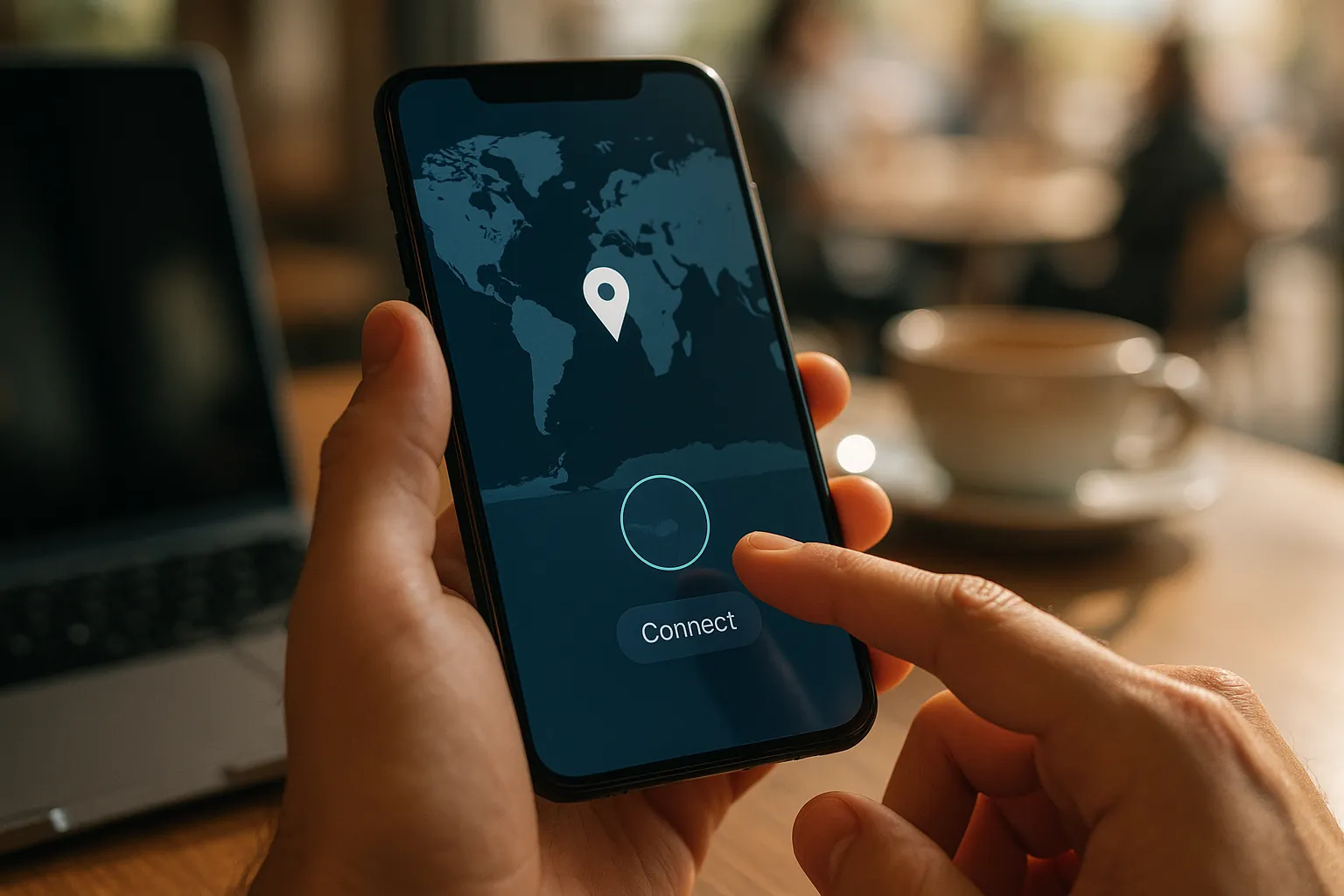
- Most apps have a large Connect button; tap it to connect to the default server.
- To choose a location, open the Server list and select a country or specific city.
- Enable the kill switch or network protection option if available.
This setup is enough for many users who just want better privacy on Wi-Fi and basic location switching.
Using split tunneling and app-based rules
Many Android VPN apps include split tunneling, which lets you choose which apps use the VPN.
- Open the VPN app settings and look for Split tunneling or Per-app settings.
- Decide whether you want to:
- Include only selected apps in the VPN tunnel (e.g., browser, streaming apps), or
- Exclude specific apps from the VPN (e.g., banking apps that dislike VPNs).
- Test each configured app to confirm it works as expected.
Split tunneling can improve speeds and reduce data usage while keeping sensitive apps protected.
Manual VPN configuration in Android settings
When to use manual configuration
Manual configuration is useful if:
- Your provider does not offer an Android app.
- You are connecting to a workplace or school VPN.
- You prefer using Android’s built-in VPN client for more control.
You will need server details from your VPN provider or network administrator, such as server address, VPN type, and your login credentials.
Step-by-step manual VPN setup
Menu names may vary slightly by manufacturer, but the process is similar:
- Open Settings > Network & Internet > VPN (or Connections > More connection settings > VPN on some devices).
- Tap Add VPN or the + icon.
- Enter a descriptive Name (e.g., “Office VPN” or “MyVPN London”).
- Choose the Type (e.g., IKEv2/IPSec, L2TP/IPSec PSK, or other protocol your provider supports).
- Enter the Server address (for example, uk.examplevpn.com).
- Fill in any required IPSec pre-shared key or certificate information.
- Enter your Username and Password.
- Tap Save, then select the profile and tap Connect.
Pros and cons of manual configuration
- Pros:
- No need for additional apps, which can save battery and storage.
- Useful for corporate or custom VPN setups.
- Less visual clutter; integrated into Android settings.
- Cons:
- Fewer advanced features like kill switch, split tunneling, and auto-connect rules.
- More complex initial setup and troubleshooting.
- Protocol choices may be limited by your Android version.
Optimizing VPN settings for speed, privacy, and battery
Choosing the right protocol and server
Your choice of protocol and server greatly affects speed and reliability.
- Protocol choice:
- WireGuard or proprietary modern protocols: usually fastest with good security.
- OpenVPN UDP: good balance of speed and security for most users.
- OpenVPN TCP: more stable on unreliable networks but slightly slower.
- Server distance: Closer servers typically offer better speeds and lower latency.
- Load balancing: If your app shows server load, pick a lightly loaded server.
Improving privacy without overpromising
A VPN adds an important layer of privacy but does not make you completely anonymous. To use it effectively:
- Enable auto-connect on untrusted or public Wi-Fi networks.
- Turn on DNS leak protection if your app supports it.
- Use HTTPS websites in combination with your VPN to protect data in transit.
- Avoid logging into unnecessary accounts if you want to reduce tracking.
Remember that apps, websites, and mobile ad networks may still track you through logins, cookies, and device identifiers, even when you use a VPN.
Managing battery and data usage
VPNs can use extra battery and data because all traffic is encrypted and routed through a remote server.
- Use split tunneling to exclude low-risk apps that transfer large amounts of data, such as some games or streaming apps if privacy is less critical for them.
- Disable the VPN when you do not need it, especially on mobile data, if your plan is limited.
- Turn off always-on VPN if it significantly impacts battery life and you are on a trusted home network.
Troubleshooting common Android VPN problems
VPN will not connect or keeps disconnecting
If your VPN struggles to connect or drops frequently:
- Switch between Wi-Fi and mobile data to see if the issue is network-specific.
- Try a different server location or protocol in the app settings.
- Disable any other security apps or firewalls temporarily to check for conflicts.
- Restart your phone and your router if you are on home Wi-Fi.
- Update both Android and the VPN app to the latest versions.
Slow speeds or buffering while connected
Performance issues are common, especially on crowded servers.
- Connect to a nearby server instead of one on the other side of the world.
- Switch from TCP to UDP or to a modern protocol like WireGuard.
- Close background apps using bandwidth (cloud backups, large downloads).
- Test your speed with and without the VPN to understand the impact.
Apps or websites not working with VPN
Some services block VPN traffic or behave unpredictably.
- Use split tunneling to exclude problematic banking or streaming apps.
- Try different servers; some are optimized for streaming or specific services.
- Clear the affected app’s cache and data, then reconnect to the VPN.
- If a service bans VPNs entirely, you may need to access it without a VPN or via a different connection.
Key tips and FAQs about Android VPN configuration
Best practices for safe VPN use on Android
- Install VPN apps only from the Google Play Store or the provider’s official website.
- Review permissions requested by the VPN app and avoid those that ask for unnecessary access.
- Keep both Android and your VPN app updated for the latest security fixes.
- Use strong, unique passwords and, where possible, two-factor authentication for your VPN account.
- Combine your VPN with good habits: avoid suspicious links, use reputable apps, and review privacy settings regularly.
Quick FAQ about configuring a VPN on Android devices
Do I need to root my phone to use a VPN?
No. Modern VPN apps work on standard, non-rooted Android devices. In fact, rooting can introduce security risks if not done carefully.
Should my VPN be on all the time?
For maximum consistency, you can keep it on, especially on public Wi-Fi. However, you may turn it off on trusted networks if you need maximum speed and do not require extra privacy at that moment.
Is a VPN enough to keep me safe?
A VPN significantly improves privacy on insecure networks and helps hide your IP address from many sites and services, but it does not replace antivirus software, secure passwords, or cautious online behavior.
Final thoughts on how to configure a VPN on Android devices
Once you understand how to configure a VPN on Android devices, turning it on becomes as routine as connecting to Wi-Fi. Whether you use an easy provider app or manual settings, focus on secure protocols, sensible server choices, and features like kill switch and split tunneling.
Combine your VPN with safe browsing habits, regular updates, and careful app permissions, and your Android phone or tablet will be significantly better protected whenever you go online.