
How to Check if Your VPN Is Working (Step-by-Step Guide)
Using a VPN is a smart way to improve your privacy online, but it only helps if it is actually working. Many people connect to a VPN once and then assume everything is protected, without verifying anything.
This guide explains how to check if your VPN is working, how to spot common leaks, and what to do if something looks wrong. You do not need to be a technical expert – just follow the simple steps below.
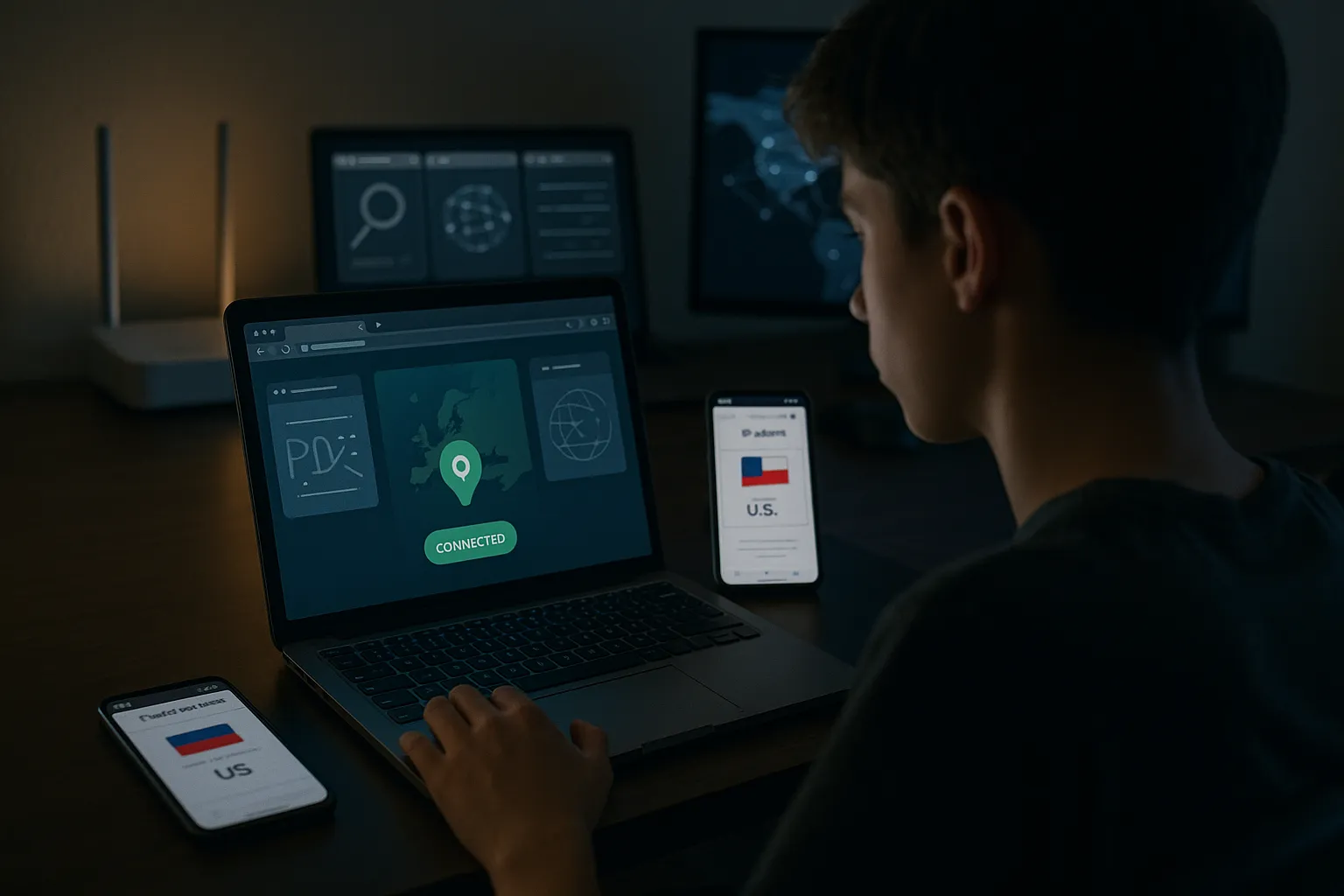
Quick checks to confirm your VPN is active
1. Verify the VPN status inside the app
The first step is to confirm that your VPN app shows an active connection.
- Open your VPN app.
- Connect to a server (for example, "Germany" or "US East").
- Look for a clear status such as Connected or a green icon.
- Note the city and country of the server you selected.
If the app shows "Connecting" for a long time or disconnects repeatedly, the VPN may not be working properly.
2. Check your IP address before and after connecting
This is the simplest way to check if your VPN is working at all.
- Disconnect from your VPN.
- Visit an IP checking site such as whatismyipaddress.com or ipleak.net.
- Write down your IP address and country.
- Now connect to your VPN and refresh the page.
If your VPN is working, you should see:
- A different IP address than before.
- A location matching your VPN server (or at least the same country).
If your IP does not change, your VPN connection is not active or your traffic is bypassing the VPN.
3. Confirm the VPN icon on your device
Most operating systems show a small VPN indicator when a secure tunnel is active:
- Windows/macOS: A small lock or VPN icon in the system tray/menu bar.
- Android/iOS: A "VPN" label or key icon in the status bar.
If the icon disappears while you browse, your VPN may have dropped the connection.
How to test for IP and DNS leaks
Understanding IP and DNS leaks in simple terms
Even when a VPN connection is active, some data can accidentally bypass it. The two most common issues are:
- IP leaks: Websites see your real IP address instead of the VPN IP.
- DNS leaks: Your device sends domain lookups (like "example.com") to your regular internet provider instead of through the VPN.
These leaks reduce your privacy because your ISP or visited websites can still link activity to your real connection, even though you think you are protected.
Step-by-step IP leak test
To check for IP leaks:
- Connect to your VPN and choose a server in a different country than your own.
- Open an IP test site such as ipleak.net or browserleaks.com/ip.
- Look at the IP and location shown.
If you see:
- Only the VPN server location and IP: this is good.
- Your home country or city instead of the VPN location: there may be an IP leak.
- Multiple IP addresses with different countries: your browser or device might be using more than one connection.
How to run a DNS leak test
A DNS leak test shows which DNS servers your device is using.
- Stay connected to your VPN.
- Visit a site like dnsleaktest.com or ipleak.net.
- Run the "Extended" or "Standard" DNS leak test.
Check the results:
- If the DNS servers belong to your VPN provider or show the VPN server country, your DNS is usually protected.
- If the DNS servers belong to your ISP or show your real country, you likely have a DNS leak.
Many VPN apps offer a built-in feature called "DNS leak protection." Make sure it is enabled in the settings if available.
Checking for WebRTC and other browser leaks
What is WebRTC and why can it leak your IP?
WebRTC is a browser technology used for real-time communication, such as video calls and peer-to-peer connections. Some browsers can expose your real IP address via WebRTC, even when a VPN is connected.
This mainly affects Chromium-based browsers (Chrome, Edge, Brave) and Firefox, and is especially important if you want stronger privacy while browsing or torrenting.
How to test for WebRTC leaks
To check if your VPN is working against WebRTC leaks:
- Connect to your VPN.
- Open a WebRTC test page like browserleaks.com/webrtc or ipleak.net (which also shows WebRTC data).
- Look for "Local IP" and "Public IP" listed under WebRTC.
Interpret the results:
- If the public IP under WebRTC matches your VPN IP, that is fine.
- If you see your home IP address or an IP from your ISP, your browser is leaking your real IP via WebRTC.
How to reduce WebRTC and browser leaks
You can limit WebRTC leaks with a few simple steps:
- Use your VPNs browser extension if it includes WebRTC protection.
- Disable or restrict WebRTC in your browser settings or via privacy add-ons.
- Use privacy-focused browsers that offer built-in WebRTC controls.
Remember that these changes may affect some video chat or file-sharing services, so test your usual sites after making adjustments.
Real-world tests for streaming, torrenting, and censorship
Testing your VPN for streaming services
Many people use VPNs to access streaming libraries while traveling or to avoid bandwidth shaping. To check if your VPN is working for streaming:
- Connect to a VPN server in the country whose library you want to access.
- Clear your browser cookies or use a private/incognito window.
- Open the streaming platform (for example, Netflix, Hulu, BBC iPlayer).
- See if the content catalog matches the VPN country.
If you still see your local catalog or receive proxy/VPN error messages, your streaming service may be detecting or blocking that VPN server.
Testing your VPN for torrenting and P2P
If you use torrents, it is especially important to confirm that your VPN is working correctly:
- Connect to a VPN server that allows P2P (some providers label these servers).
- Run the IP, DNS, and WebRTC tests described above.
- In your torrent client, check what IP peers see (many clients show this in the connection details).
Make sure the IP shown in your torrent client matches your VPN IP, not your home IP. Also enable any "kill switch" feature so your traffic stops if the VPN disconnects unexpectedly.
Checking if your VPN bypasses local restrictions
To see whether your VPN can help with censorship or network blocks:
- Connect to a VPN server in a country with open internet access.
- Try visiting websites or apps that are usually blocked on your network.
- Test both in a browser and in apps (for example, messaging or VoIP apps).
If sites remain blocked, your network may be using deep packet inspection or blocking VPN protocols. Switching to another protocol (like WireGuard, OpenVPN over TCP, or an "obfuscated" mode) can sometimes help.
How to fix common VPN problems
When your IP does not change at all
If your IP stays the same with and without the VPN:
- Disconnect and reconnect to a different VPN server.
- Restart the VPN app and, if possible, your device.
- Check that no "split tunneling" rule is set to exclude your browser.
- Temporarily disable other network tools (firewalls, proxies) that might interfere.
If none of this helps, contact your VPN provider support with screenshots of your IP test results.
When you detect DNS or WebRTC leaks
If DNS tests show your ISP or home country:
- Enable "DNS leak protection" in your VPN app settings.
- Disable any custom DNS settings on your device or router.
- Reconnect to the VPN and repeat the DNS leak test.
If WebRTC tests show your real IP:
- Install a browser extension that blocks or limits WebRTC.
- Use your VPNs official browser extension if available.
- Consider using a different browser for privacy-sensitive tasks.
Pros and cons of relying on VPN tests
Regularly testing whether your VPN is working has clear advantages, but also some limitations.
- Pros:
- Confirms that your traffic is going through the VPN tunnel.
- Helps you spot leaks that reduce privacy.
- Shows which servers are best for streaming or torrenting.
- Cons:
- Tests only reflect the moment you run them; conditions can change.
- Some sites may mis-detect locations or IP owners.
- Results can be confusing if you use multiple privacy tools at once.
Use these tests as a regular checkup, not as a guarantee of perfect privacy.
Final tips on how to check if your VPN is working
Knowing how to check if your VPN is working is just as important as choosing a good provider. By testing your IP address, DNS requests, WebRTC behavior, and real-world use cases like streaming or torrenting, you can confirm that your VPN is actually protecting most of your traffic.
Remember that a VPN significantly improves privacy by encrypting your connection and hiding your real IP from many websites and networks, but it does not make you completely anonymous. Combine your VPN with safe browsing habits, strong passwords, updated software, and cautious sharing of personal information. Run these quick tests from time to time, and you will have a much clearer picture of how well your VPN is working for you.