
Essential Cybersecurity Tips for Everyday Users
Cyber threats are no longer just a problem for big companies. Phishing emails, hacked social media accounts, and stolen banking details affect everyday people every single day. The good news is that a few essential cybersecurity tips can dramatically lower your risk.
This guide explains the most important steps you can take to protect your devices, accounts, and personal data. You do not need to be a technical expert; these habits are designed for regular users who want to stay safer online without making life complicated.
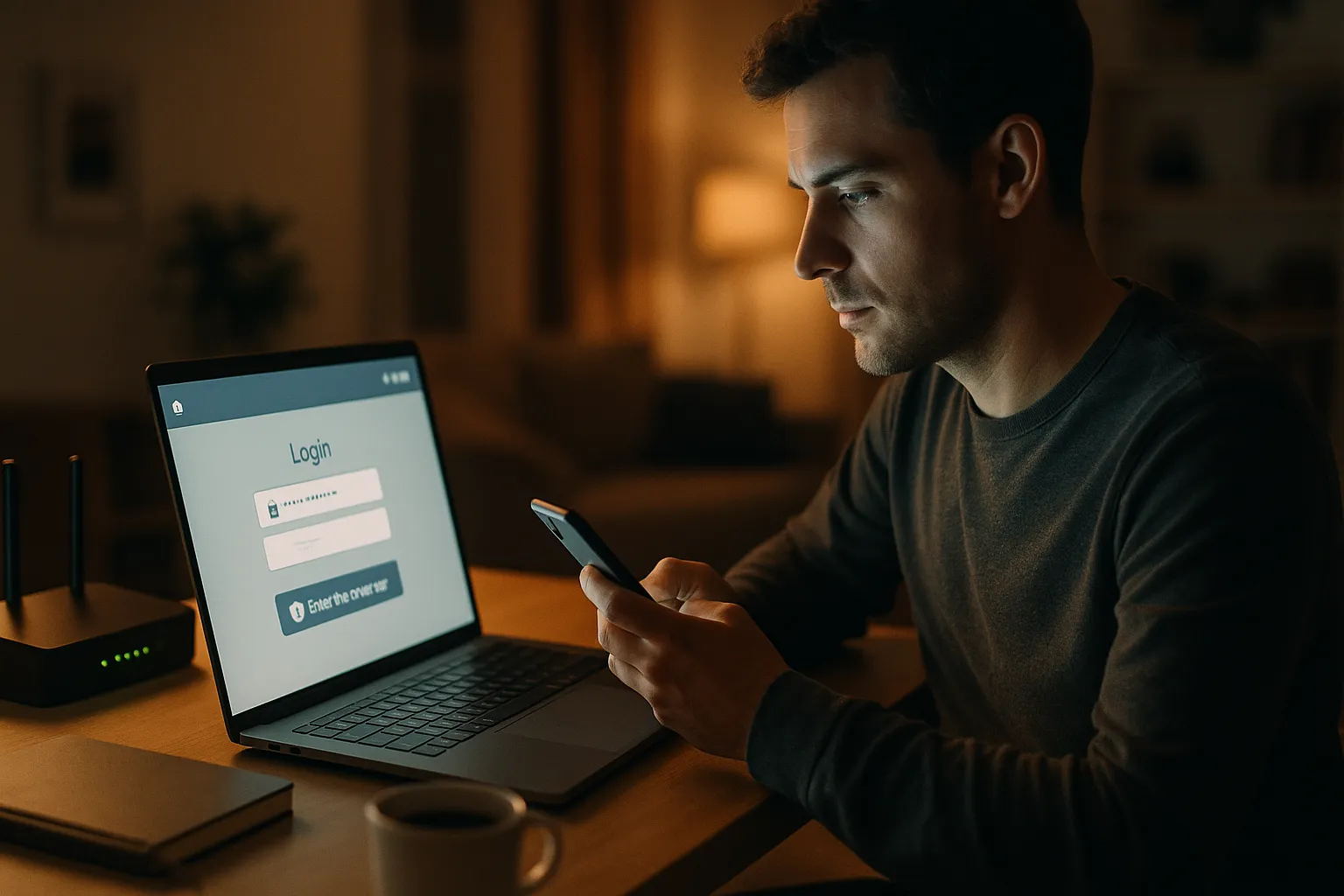
Core cybersecurity basics every user should know
What cybersecurity means for everyday users
Cybersecurity is about protecting your digital life: your devices, online accounts, money, and personal information. For everyday users, this means reducing the chances that someone can:
- Break into your accounts and change passwords
- Steal payment details or banking information
- Access private photos, messages, or documents
- Install malware that spies on you or locks your files
The goal is not perfection but risk reduction. A few smart habits make you a much harder target than someone who ignores basic security.
Key principles behind essential cybersecurity tips
Most essential cybersecurity tips are based on a few simple principles:
- Least privilege: Only give apps and services the access they really need.
- Layered defense: Use multiple protections (strong passwords, updates, antivirus, VPN, safe browsing) so one failure does not expose everything.
- Verification: Do not trust links, attachments, or messages automatically. Check the source before you click.
- Backup: Assume something may go wrong one day and keep safe copies of important data.
Keeping these principles in mind will help you understand why each practical tip in this guide matters.
Strong passwords, password managers, and 2FA
Creating strong, unique passwords
Weak or reused passwords are one of the easiest ways for attackers to break into accounts. To improve security:
- Use unique passwords for important accounts (email, banking, cloud storage, social media).
- Aim for at least 12–16 characters with a mix of letters, numbers, and symbols.
- Avoid personal details like your name, birthday, or pet’s name.
- Use passphrases: combine several random words with numbers or symbols (for example,
blue-river!chair29).
Why password managers are worth using
Remembering dozens of strong passwords is unrealistic. A password manager securely stores and autofills them for you, protected by one strong master password. Benefits include:
- Security: Generates long, random passwords that are hard to crack.
- Convenience: Autofills logins on websites and apps.
- Awareness: Alerts you to reused or weak passwords and sometimes to known data breaches.
Choose a reputable password manager from a well-known provider, enable two-factor authentication (2FA) on it, and never share your master password.
Adding two-factor authentication (2FA) for key accounts
Two-factor authentication adds an extra step when you log in, such as a code from an app or SMS. Even if someone steals your password, 2FA can stop them from accessing your account.
Enable 2FA on:
- Email accounts (especially the one used for password resets)
- Banking and financial services
- Cloud storage and password managers
- Social media and messaging apps
When possible, use authenticator apps (like Google Authenticator, Microsoft Authenticator, or similar) or hardware keys instead of SMS, as texts can sometimes be intercepted or redirected.
Safer browsing, Wi‑Fi security, and VPN use
Staying safe on public Wi‑Fi
Cafes, airports, and hotels often have unsecured Wi‑Fi networks. Attackers on the same network may try to intercept your traffic or trick you into connecting to fake hotspots.
To reduce risk:
- Avoid accessing banking or highly sensitive accounts on public Wi‑Fi when possible.
- Turn off file sharing and AirDrop (or similar features) in public places.
- Forget networks you no longer use and disable auto-connect for unknown Wi‑Fi.
- Prefer your mobile data connection for sensitive tasks.
How a VPN helps with privacy and security
A virtual private network (VPN) encrypts your internet traffic and routes it through a secure server. This helps:
- Prevent local snooping on public Wi‑Fi (for example, in cafes or hotels).
- Reduce how much your internet provider can see about your browsing.
- Mask your real IP address from the websites you visit.
However, a VPN does not make you completely anonymous, and it cannot protect you from everything. You still need safe browsing habits, strong passwords, and up-to-date devices. Always choose a trustworthy VPN provider with a clear, privacy-focused policy and avoid free services that may log or sell your data.
Securing your home Wi‑Fi network
Your home router is the gateway to all your devices. Basic steps include:
- Change the default admin username and password on the router.
- Use WPA2 or WPA3 encryption with a strong Wi‑Fi password.
- Update router firmware regularly to patch security flaws.
- Consider a guest network for visitors and smart home devices.
These steps help prevent neighbors, strangers, or malware-infected devices from easily accessing your network.
Protecting your devices from malware and theft
Keeping systems and apps updated
Operating system and app updates often fix security vulnerabilities that attackers actively exploit. Delaying updates leaves your devices exposed.
Make a habit of:
- Enabling automatic updates on Windows, macOS, Android, and iOS.
- Regularly updating browsers (Chrome, Firefox, Edge, Safari) and plugins.
- Removing apps you no longer use to reduce your attack surface.
Using antivirus and built-in protections
Modern operating systems include strong built-in defenses, but an additional reputable antivirus or security suite can add another layer of protection.
Look for tools that provide:
- Real-time malware and ransomware detection
- Safe browsing or web reputation checks
- Email or attachment scanning
Remember that no tool is perfect. Antivirus software reduces risk but does not replace careful behavior, especially when opening attachments or downloading files.
Physical security and device lock protection
Lost or stolen devices can expose sensitive data, even if your online security is strong. To protect yourself:
- Use a PIN, strong password, or biometric lock (fingerprint, face) on all devices.
- Enable full-disk encryption (FileVault on macOS, BitLocker on Windows, built-in encryption on modern smartphones).
- Turn on "find my device" features to locate or remotely wipe lost phones and laptops.
- Avoid leaving devices unattended in public places or unlocked in cars.
Recognizing scams, phishing, and social engineering
Common signs of phishing emails and messages
Phishing is when attackers pretend to be trusted organizations to trick you into revealing passwords, payment details, or other sensitive information. Warning signs include:
- Urgent language: "Your account will be closed today" or "Immediate action required".
- Suspicious links: Hover over links to see the real address before clicking.
- Unexpected attachments: Especially ZIP, EXE, or Office files with macros.
- Sender address that looks slightly wrong: Extra letters, numbers, or unusual domains.
If in doubt, do not click the link. Instead, open your browser and go directly to the official website or app to check your account.
Social engineering on social media and messaging apps
Attackers often use social networks and messaging apps to build trust before asking for money or information. Be cautious when:
- Someone you barely know suddenly asks for financial help or gift cards.
- You receive a message from a friend that seems out of character or contains only a link.
- Strangers ask for verification codes that were sent to your phone.
When something feels off, verify through another channel. Call or message the person using a known, trusted contact method.
Safe habits for links, downloads, and online forms
Many infections and data leaks start with a single careless click. Safer habits include:
- Downloading software only from official stores or vendor websites.
- Checking that websites use HTTPS (a padlock icon) before entering sensitive information.
- Avoiding browser extensions from unknown developers.
- Being skeptical of "too good to be true" offers, free giveaways, or investment schemes.
Putting essential cybersecurity tips into daily practice
Essential cybersecurity tips for everyday users are not about becoming an expert. They are about building a handful of simple, repeatable habits: strong unique passwords with a manager, 2FA on key accounts, updated devices, cautious clicking, and safer network use with tools like VPNs when appropriate.
No single step will stop every threat, and even a VPN or antivirus cannot guarantee complete anonymity or perfect protection. But by combining these practices, you make it much harder for attackers to succeed and far more likely that your digital life stays private, secure, and under your control.